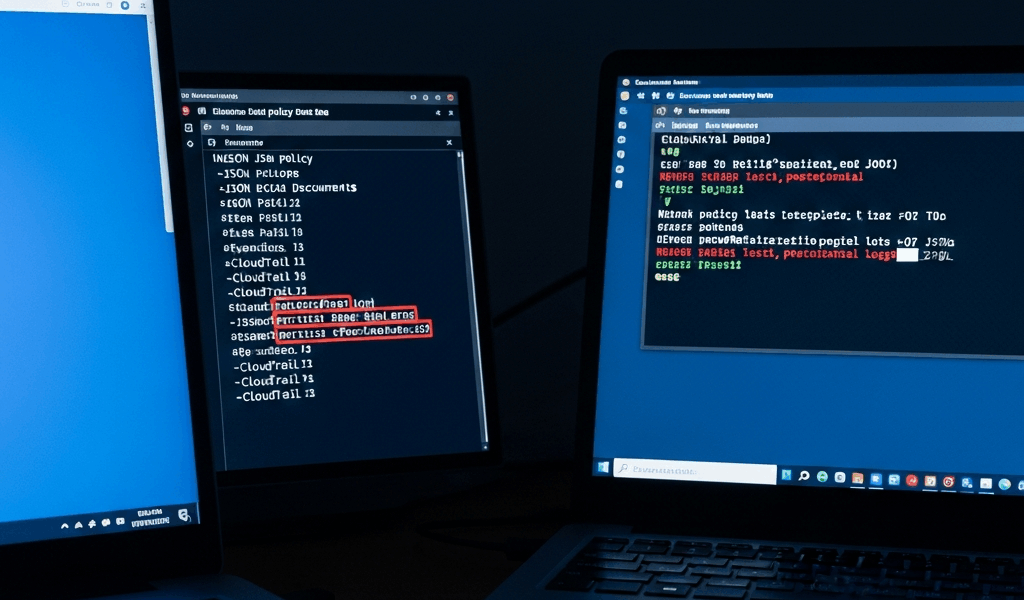
AWS IAM Permissions Errors — How to Debug Them Fast
AWS IAM permissions have gotten complicated with all the layers, policies, and organizational controls flying around. As someone who has spent the last three years untangling AccessDenied errors across Lambda functions, EC2 roles, and S3 buckets at 2 PM on a Friday, I learned everything there is to know about this particular flavor of cloud misery. Today, I will share it all with you.
Someone deploys a Lambda. An EC2 instance assumes a role. A service tries to read a config file from S3. The response? AccessDenied. No context. No hint about which layer blocked it. Just rage — and a deadline that isn’t moving.
So, without further ado, let’s dive in.
What the Error Message Is Actually Telling You
But what is an IAM AccessDenied error, really? In essence, it’s AWS telling you that something in the permission evaluation chain said no. But it’s much more than that — it’s a breadcrumb, and most engineers stop reading it too early.
Here’s a real error you’ll see:
User: arn:aws:iam::123456789012:user/jenkins is not authorized to perform: s3:GetObject on resource: arn:aws:s3:::my-prod-bucket/config.json with an explicit denyDecode it like this:
- Principal: arn:aws:iam::123456789012:user/jenkins — that’s your user or role
- Action: s3:GetObject — the specific API call being blocked
- Resource: arn:aws:s3:::my-prod-bucket/config.json — the exact object
- Deny type: “explicit deny” vs. “implicit deny” — this matters more than most people realize
An explicit deny means someone actively wrote a no. An implicit deny is more common — nobody ever wrote a yes, so AWS defaults to no. Those are two completely different debugging paths. Don’t mix them up.
See “explicit deny”? Go find the deny statement. Someone wrote it somewhere. See “not authorized” with no explicit language? The allow is just missing. That’s different.
Step 1 — Use the IAM Policy Simulator First
Probably should have opened with this section, honestly.
Go to the AWS IAM console right now. Open Policy Simulator — it lives under IAM → Access Analyzer → Policy Simulator, though AWS moves things around enough that you might need to search for it. Enter these fields:
- IAM entity: Paste the full ARN of the principal. Something like arn:aws:iam::123456789012:user/jenkins or arn:aws:iam::123456789012:role/lambda-execution-role
- Action: s3:GetObject
- Resource: arn:aws:s3:::my-prod-bucket/config.json
- Account: Leave as current unless you’re cross-account — and you probably aren’t if you’re currently panicking
Hit “Run simulation.”
Green means allowed. Red means denied — and more importantly, it shows you exactly which policy evaluated and why it said no. Most of the time the answer comes back in under 30 seconds: “This entity has no identity-based policy attached.” Done. I’ve lost hours digging through CloudTrail when this tool would have solved it immediately. Don’t make my mistake.
Test both paths here. The identity-based route covers the principal’s attached policies. The resource-based route covers the bucket policy, queue policy, or whatever owns the resource on the other end. The simulator handles both.
Step 2 — Pull the CloudTrail Event for the Denial
The policy simulator tells you what the policies say. CloudTrail tells you what actually happened — those aren’t always the same thing.
Go to CloudTrail Events in the AWS console. Or, if you’re faster on the CLI:
aws cloudtrail lookup-events \
  --lookup-attributes AttributeKey=EventName,AttributeValue=GetObject \
  --filters Name=EventSource,Values=s3.amazonaws.com \
          Name=ErrorCode,Values=AccessDenied \
  --region us-east-1 \
  --max-results 10
Find errorCode: AccessDenied in the results. Open the event JSON. You’re hunting for these specific fields:
- userIdentity.principalId — confirms who actually tried the action
- sourceIPAddress — where the call originated
- errorCode and errorMessage — the raw denial reason, unfiltered
- requestParameters — what resource they were trying to touch
- responseElements — often empty on denials, but worth a look anyway
This is where role assumption failures surface. Federated identity mismatches. Session token issues. The CloudTrail event confirms whether the principal was actually who you thought it was — and the timestamp proves you’re even looking at the right error. That last part matters when you’re debugging something across three teams at once.
Event shows an explicit deny with a statement ID? You’ve found your culprit. Still showing implicit? Move to Step 3.
Step 3 — Check SCPs, Resource Policies, and Permission Boundaries
IAM identity policies are not the only layer. There are three more — and most engineers forget at least one of them exists.
Service Control Policies (SCPs). These live at the organization level, under AWS Organizations → Policies → Service Control Policies. SCPs apply to entire OUs or accounts and they override identity policies. Full stop. If your organization has an SCP that blocks s3:*, your user’s s3:GetObject permission is completely irrelevant. I’ve watched senior engineers spend 45 minutes on a role policy before someone finally checked the SCP stack. That was not a fun standup the next morning.
Resource-based policies. S3 buckets have bucket policies. SNS topics have access policies. These live on the resource itself and control who can interact with it — independent of whatever the principal’s identity policy says. Go to the resource in the AWS console and pull up its policy tab. Classic scenario: the S3 bucket policy denies all principals except those coming from a specific VPC. Your user clears the identity check just fine, then hits a wall at the resource level.
Permission boundaries. These are identity-based limits attached directly to a user or role. A principal with a permission boundary can never exceed that boundary — even with a broader attached role. Check the user or role’s “Permissions boundary” section in the IAM console. It blocks permissions silently and gets overlooked constantly. I’m apparently thorough enough to check this one now, and that habit works for me while skipping it never does.
Run through this decision tree before touching anything:
- Does the principal have an identity policy with an explicit allow for the action and resource? Check IAM console → user or role → Permissions tab.
- Is there an SCP denying this action? Check the AWS Organizations console.
- Is the resource policy blocking the principal? Check the resource itself.
- Does a permission boundary restrict the action? Check the principal’s boundary section.
All four layers need to say yes before an action succeeds. One explicit deny anywhere in that chain and you’re blocked — regardless of what every other layer allows.
Quick Fix Checklist Before You Change Anything
While you won’t need to touch all of these every time, you will need a handful of quick sanity checks before you start modifying policies. First, you should confirm you’re in the right AWS account — at least if you want to avoid the specific embarrassment of fixing the wrong environment entirely. I’ve been there. It’s a special kind of bad.
- Confirm the role is being assumed correctly. If a Lambda is assuming a role, check the trust relationship and the assume-role policy — not just the role’s permissions. Those are different documents.
- Verify the resource ARN matches exactly. arn:aws:s3:::my-bucket/config.json is not the same as arn:aws:s3:my-bucket/config.json. The colons in bucket ARNs are load-bearing.
- Check for deny statements higher in the policy chain — SCPs and resource policies especially.
- After you fix it, test with least privilege. s3:GetObject might be the best option here, as the principle of least privilege requires a specific allow rather than a wildcard. That is because s3:* comes back to haunt you during a security audit roughly six months later, every single time.
That’s the whole workflow. Run the policy simulator, pull the CloudTrail event, check the three override layers, verify your ARN syntax. Ninety percent of IAM permission errors resolve somewhere in those four steps — usually in under 15 minutes once you stop guessing and start reading what the error is actually telling you.



Stay in the loop
Get the latest team aws updates delivered to your inbox.