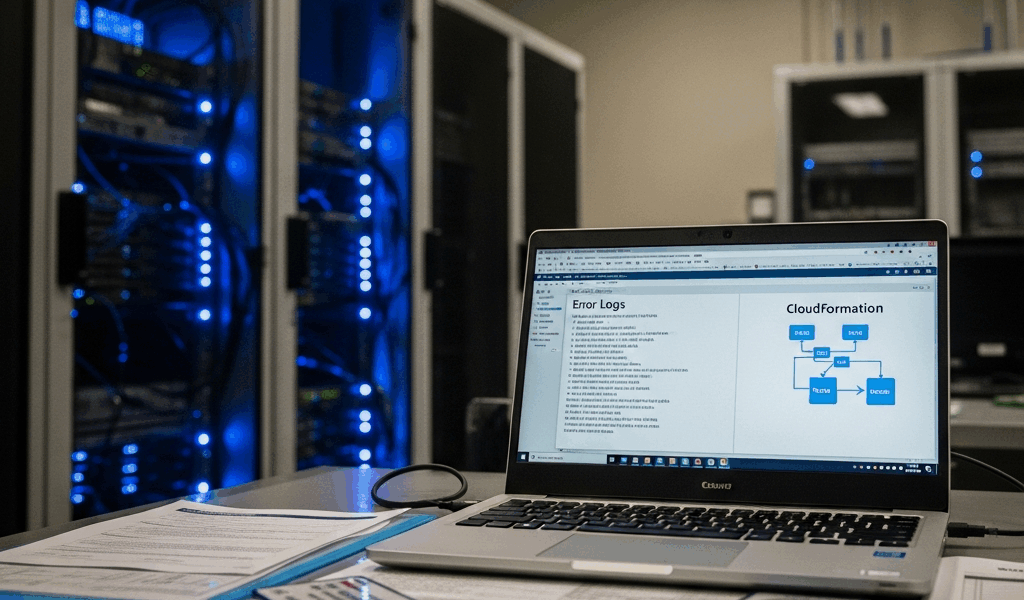
What Causes CloudFormation Stack Creation to Fail
As someone who’s spent the last four years managing infrastructure-as-code deployments for government teams, I’ve learned that CloudFormation failures rarely surface clean error messages. The stack initiates, spins for thirty seconds to two minutes, then rolls back without telling you why — leaving you staring at a CREATE_ROLLBACK_COMPLETE state wondering what went wrong.
The real error lives buried in the Events tab. Most operators never find it.
Seven root causes account for nearly every failure I’ve debugged. First: IAM permissions. Your deployment principal lacks access to create the resources the template specifies. Second: template syntax errors — malformed JSON, undefined resource properties, or resource types that don’t exist in your AWS region. Third: service quotas hitting account limits on EC2 instances, security groups, or RDS databases. Fourth: missing VPC configuration or subnet availability zone mismatches. Fifth: resource naming conflicts, like an S3 bucket with that name already existing globally. Sixth: organizational policies blocking the stack outright. Seventh: circular dependencies or misconfigured resource references inside the template itself.
Probably should have opened with this section, honestly. Understanding where to look saves hours of troubleshooting.
How to Read CloudFormation Error Messages
Finding the actual error message takes detective work. Navigate to your stack, click the Events tab, and sort by timestamp descending. Look for the resource with status CREATE_FAILED or ROLLBACK_IN_PROGRESS. The Status Reason column — that’s where the actual error lives.
It reads something like this: “User: arn:aws:iam::123456789012:role/deployment-role is not authorized to perform: ec2:CreateSecurityGroup on resource: arn:aws:ec2:us-gov-west-1:123456789012:security-group/*.”
That’s actionable information. You know the principal. You know the action. You know the resource type.
Events tab shows only “Stack creation rolled back” with no child resource failures? Check CloudTrail instead. The issue occurred before any resources were created — likely during template parsing or IAM validation. Search CloudTrail for the stack name and look for “AccessDenied” or “ValidationError” events. The event detail JSON shows exactly which service call failed and why.
Some failures don’t appear in either place immediately. Your stack hangs in CREATE_IN_PROGRESS for more than five minutes — the template probably references a resource property that doesn’t exist or uses an unsupported resource type for your region. Check the AWS documentation for your region’s supported resources. Us-gov-west-1 and us-gov-east-1 lag commercial AWS by months on new resource types.
Fix IAM Permission Errors During Stack Creation
In government and military deployments, stack failures almost always trace back to IAM. Your deployment role doesn’t have permission to create the resources your template defines.
First, identify the role executing the stack. Using AWS CloudFormation StackSets? Check the service-linked role arn:aws:iam::ACCOUNT:role/AWSCloudFormationStackSetAdministrationRole. Deploying from CI/CD instead? Check the role attached to your CodePipeline or CodeBuild project.
The role needs two things: permissions to create every resource type in your template, and permission to assume any additional roles the stack creates. Here’s a minimal policy for a stack that creates an EC2 instance, security group, and CloudWatch log group:
{

  "Version": "2012-10-17",

  "Statement": [

    {

      "Effect": "Allow",

      "Action": [

        "ec2:CreateSecurityGroup",

        "ec2:AuthorizeSecurityGroupIngress",

        "ec2:CreateNetworkInterface",

        "ec2:RunInstances",

        "logs:CreateLogGroup",

        "logs:CreateLogStream",

        "iam:CreateRole",

        "iam:PutRolePolicy",

        "iam:PassRole"

      ],

      "Resource": "*"

    }

  ]

}
In restricted environments, you often can’t attach this to your deployment role directly. Service Control Policies (SCPs) at the organization level override explicit IAM permissions. Stack fails with an AccessDenied error even though the role has the policy attached? An SCP is blocking it.
Work with your cloud governance team to add an exception to the SCP. The exception statement looks like this:
{

  "Effect": "Allow",

  "Principal": {

    "AWS": "arn:aws:iam::ACCOUNT:role/deployment-role"

  },

  "Action": [

    "ec2:*",

    "logs:*",

    "iam:*"

  ],

  "Resource": "*",

  "Condition": {

    "StringEquals": {

      "aws:RequestedRegion": "us-gov-west-1"

    }

  }

}
The condition limits the exception to your deployment region. Compliance teams appreciate that level of precision.
Fix CloudFormation Template Syntax and Resource Errors
I deployed a template once that used AWS::EC2::LaunchConfig in us-gov-west-1. The stack rolled back silently because that resource doesn’t exist in government regions — EC2 requires AWS::EC2::LaunchTemplate instead. The error message said only “Template validation failed.” Completely useless.
Validate your template locally before deploying, using cfn-lint. Install it via pip:
pip install cfn-lint
Run it against your template file:
cfn-lint my-template.json
Cfn-lint catches property typos, undefined resources, and region-specific restrictions immediately. It doesn’t check IAM permissions or service quotas — validation is syntax and CloudFormation-specific rules only.
For semantic validation inside CloudFormation itself, use the Designer. Upload your template to CloudFormation Designer in the AWS console. The interface shows a visual representation and flags invalid resource properties in real time. Click the template panel to see the raw JSON; errors appear as red underlines.
Common syntax mistakes: JSON formatting errors (missing comma between properties), undefined resource properties (trying to set a property that doesn’t exist on that resource type), and circular dependencies (Resource A depends on Resource B, which depends on Resource A).
Check the CloudFormation resource documentation for your specific region. Us-gov-west-1 and us-gov-east-1 support different resource types and properties than commercial regions. Verify that every resource type in your template appears in the government region documentation.
Fix Resource Limit and Rollback Loop Errors
Stack fails with “You have requested more instances than your current Instance Limit allows.” You’ve hit the service quota for EC2 instances in that account and region.
Check your current quotas in the Service Quotas console. Navigate to Quotas, search for “EC2,” and review On-Demand instances for your instance family. At the limit? Request an increase. In government accounts, quota increase requests route to AWS GovCloud support and typically take 24-48 hours.
While waiting for approval, reduce your template’s resource counts for testing. Deploy with half the instances, validate the stack succeeds, then delete it and request the quota increase.
Stacks sometimes get stuck in CREATE_ROLLBACK_FAILED state. CloudFormation creates some resources successfully, then fails on a later resource, and the rollback itself fails — you can’t update or delete the stack normally.
Manually delete the successfully-created resources using the EC2, RDS, or other service consoles. Once they’re gone, the stack delete completes. Then redeploy with the root cause fixed.
Build templates incrementally to prevent this entirely. Deploy a template that creates only VPC and subnets first. Validate it succeeds. Then add EC2 instances. Then add RDS databases. Staggering resource creation limits blast radius.
Debug CloudFormation Failures in Restricted/Compliance Environments
Military and government deployments layer on organizational controls that block stacks silently. Your template is syntactically correct, your role has IAM permissions, but the stack creation fails anyway.
Start with Service Control Policies. Navigate to AWS Organizations and review the SCPs attached to your organizational unit. An SCP denies the action? Even an explicit Allow in your role’s IAM policy won’t override it. SCPs are the ultimate deny. Work with your compliance team to whitelist the stack creation principal and actions in the SCP.
Next, check resource tagging requirements. Many government accounts mandate resource tags for cost allocation or compliance tracking. Template doesn’t include required tags? CloudFormation silently blocks resource creation. Add a Tags section to every resource:
"Tags": [

  {

    "Key": "Environment",

    "Value": "Production"

  },

  {

    "Key": "CostCenter",

    "Value": "DLIS-001"

  },

  {

    "Key": "Compliance",

    "Value": "FISMA"

  }

]
Confirm the tag keys and values with your governance team before deployment.
Finally, check resource-based policies. Some services like S3 buckets or KMS keys require explicit resource policies allowing CloudFormation to access them. Stack creates an S3 bucket and a Lambda function that reads from it? The bucket policy must allow the Lambda execution role to call s3:GetObject.
Deploy your stack in a test organizational unit first — test OUs typically have fewer restrictions. Once the stack succeeds there, request an exception for your production OU and redeploy.




Stay in the loop
Get the latest team aws updates delivered to your inbox.