AWS IAM Permission Denied Errors — How to Fix Them
AWS IAM has gotten complicated with all the overlapping policy layers flying around. You hit deploy. A Lambda function fails. CloudWatch spits out something like “User: arn:aws:iam::123456789012:role/my-app-role is not authorized to perform: s3:GetObject on resource: arn:aws:s3:::my-bucket/data.json.” Panic sets in. Then you do what everyone does — attach AdministratorAccess to the role and move on.
As someone who has debugged IAM permission failures at 2am with a production incident open, I’ve learned everything there is to know about why that instinct is exactly wrong. Today, I will share it all with you.
Every time I slapped AdministratorAccess on a role to “fix” things, my security posture got worse and I learned nothing. These errors are fixable without nuking your whole model. The trick is a specific diagnostic sequence — not guessing, not flailing, not opening a Stack Overflow tab that’s four years old.
Find the Exact Denied Action in CloudTrail First
Stop reading the application error message. Seriously. It’s usually incomplete or buried under framework noise. CloudTrail is your source of truth — go there first, not second.
In the CloudTrail console, filter using these exact fields:
- Event name: Leave blank (catch all events)
- Event source: The service that denied you — “s3.amazonaws.com” or “dynamodb.amazonaws.com”, for example
- Event outcome: “Failure”
- User name: The role or principal that got denied (e.g., “my-app-role”)
- Time range: Last 15 minutes — CloudTrail has roughly a 15-minute delay, which matters more than people realize
Click the specific event. Look at “errorCode” — you want AccessDenied. Look at “eventName” — that’s the exact action that failed. Look at “requestParameters” — that’s the resource. Now you have something precise to work with instead of a vague complaint about “S3 not working.”
Comfortable in the CLI? Run this:
aws cloudtrail lookup-events --lookup-attributes AttributeKey=ResourceName,AttributeValue=my-bucket --max-results 10 --query 'Events[?CloudTrailEvent.errorCode==`AccessDenied`]' | jq '.[] | .CloudTrailEvent'
That gives you the raw event JSON. Extract the action, the resource ARN, and the principal. Write them down — on paper, in a note, wherever. Do not guess at these values. The policy you end up granting will be precise instead of a security liability you’ll explain to an auditor in six months.
Run the IAM Policy Simulator to Isolate the Block
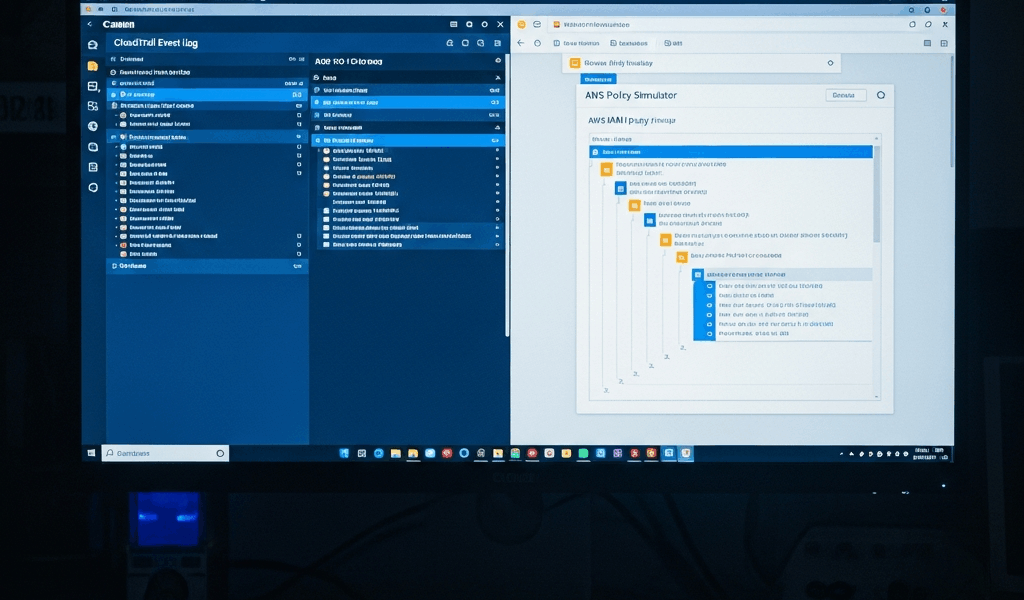
But what is the Policy Simulator? In essence, it’s a tool that tests whether the IAM policies on a role actually permit a specific action against a specific resource. But it’s much more than that — it’s the difference between knowing what’s broken and just poking things until something changes.
Go to IAM → Access Analyzer → Policy Simulator. Enter:
- IAM Entity: The role ARN — something like arn:aws:iam::123456789012:role/my-app-role
- Action: The exact action you pulled from CloudTrail (e.g., s3:GetObject)
- Resource ARN: The exact resource from CloudTrail (e.g., arn:aws:s3:::my-bucket/data.json)
Use “Simulate Custom Policy” to test a new policy before attaching it. Use “Simulate Principal Policy” to test what’s already attached. The simulator returns “allowed” or “denied” — and if denied, it shows which policy or condition blocked you. Nine times out of ten, the problem is right there.
Here’s the caveat nobody puts in big enough font: the Policy Simulator does not evaluate Service Control Policies or resource-based policies from other AWS accounts. I’m apparently someone who learns this the hard way — I once spent thirty minutes puzzling over a “denied” result while an SCP was silently blocking everything at the org level the whole time. Don’t make my mistake.
Check for SCPs and Permission Boundaries Overriding the Policy
A role can look perfectly permissioned on paper and still get denied. That’s what makes IAM endearing to us cloud engineers — there’s always one more layer.
Service Control Policies are the usual culprit here. They operate at the AWS Organizations level, applying to entire OUs or accounts. Even if the IAM policy says “yes,” an SCP saying “no” wins. Full stop. Common examples worth scanning for:
- Deny all s3:* except in us-east-1
- Deny all actions except those in an approved whitelist
- Deny all actions for principals without MFA
Go to AWS Organizations → Policies → Service Control Policies. Review what’s attached to your account’s OU. If you find a blocking SCP, you either modify it — assuming you have org-level access — or escalate to whoever does.
Permission boundaries are trickier, honestly. They attach directly to individual roles and act as a ceiling on what permissions are possible. A managed policy might grant s3:* across every bucket in existence, but a permission boundary limiting access to one specific bucket makes everything else effectively unreachable. Both must allow the action — if either says no, you’re blocked.
Check boundaries on the role under IAM → Roles → [Your Role] → Permissions. Look for “Permission boundary” in the policy summary. If one exists, read it carefully. That’s probably where your ceiling is.
Resolve Inline vs Managed Policy Conflicts
Probably should have opened with this section, honestly. Conflicting policies are responsible for a significant chunk of the “why is this still broken” moments I’ve seen — especially after someone tightened security on a role and forgot to check for collateral damage.
IAM evaluates by specificity, but an explicit Deny anywhere in the chain beats any Allow. If a managed policy grants you s3:GetObject on a bucket and an inline policy on the same role explicitly denies it with a wildcard, the Deny wins. No negotiation.
Here’s a concrete example of how this plays out:
Managed Policy (AmazonS3ReadOnlyAccess):
{

  "Version": "2012-10-17",

  "Statement": [

    {

      "Effect": "Allow",

      "Action": "s3:Get*",

      "Resource": "*"

    }

  ]

}
Inline Policy (custom-deny):
{

  "Version": "2012-10-17",

  "Statement": [

    {

      "Effect": "Deny",

      "Action": "s3:*",

      "Resource": "arn:aws:s3:::restricted-bucket/*"

    }

  ]

}
Try to s3:GetObject on restricted-bucket and the Deny wins — the managed policy doesn’t matter at all.
Spotting this quickly: go to the role’s Permissions tab in the console. Inline policies and managed policies are listed separately. Review both. Look for Deny statements. Compare the resource ARNs in your CloudTrail event against the ARNs in each policy. A visual scan catches conflicts faster than reading JSON line by line — at least if you know what you’re looking for.
Quick Reference Checklist Before You Give Up and Use AdministratorAccess
So, without further ado, let’s dive in — here’s the checklist I actually use when I’m under pressure. Print it. Bookmark it. I’ve referenced it more times than I want to admit.
- CloudTrail lookup: Filter for AccessDenied on the service and principal. Extract the exact action and resource ARN — write them down.
- Policy Simulator: Simulate the principal policy using those exact action and resource values. Check the result and note any blocking policies it surfaces.
- SCP check: Go to AWS Organizations and review SCPs on your account’s OU. Look for explicit Denies matching your action or resource.
- Permission boundary check: On the role itself, check whether a permission boundary is set. If yes, read it for any Deny that matches your action.
- Inline vs managed policy conflict: Review both inline and managed policies on the role. Look for explicit Deny statements overriding your Allows.
- Resource-based policy: If the target service — an S3 bucket, a Lambda function, whatever — has a resource-based policy, review it. A bucket policy can deny access even when IAM would allow it.
- Condition keys: Check whether the IAM policy or SCP includes conditions like aws:RequestedRegion, aws:username, or aws:MultiFactorAuthPresent. A mismatched condition silently denies without much explanation.
- Cross-account access: Accessing a resource in another account? That account’s resource-based policy must also explicitly allow the action — your IAM policy alone isn’t enough.
Clear all eight and the permission works. Resist the urge to attach AdministratorAccess as a “quick test.” That’s how security debt gets planted and never repaid — and I’m apparently someone who had to learn that lesson twice before it stuck.
IAM permission denied errors are frustrating. They’re also solvable. The sequence matters more than any individual step. CloudTrail gives you facts. The Policy Simulator tests those facts. SCPs and boundaries add constraints you cannot ignore. Inline and managed policies can quietly fight each other. Run through this flow and you’ll know exactly what’s broken — instead of just guessing and hoping AdministratorAccess makes the alert go away.




Stay in the loop
Get the latest team aws updates delivered to your inbox.